Showing posts with label Calypso tips. Show all posts

Point Recall with LOOP


This will create a wall thickness 360° around the part top and bottom 8 points each.


https://cmm-quarterly.squarespace.com/articles/calypso-point-recall-with-loop

Calypso - PCM Confirm

This article focuses on the Calypso PCM command - confirm. There are times when constructing a program that as programmers we need the operator to follow specific instructions or confirm that something is a certain way before executing the program


Example: A confirmation ("confirm") in PCM


We have written a calibration routine program but we need the operator to confirm that MasterBall shaft at the '0' position before the operator executes this calibration program. This will avoid the stylus system from striking the MasterBall base during the calibration. If it is not at the '0' position I want to end the program.


Here is one way this is done.


NOTE: this example uses PCM, a optional module on Calypso.


Write the program as you normally would. When this is complete right click to access the parameter function.


Choose Parameter and this will open the Pre and Post Parameter settings dialog box


In the presetting box and type the above commands. Now there is another method to select the code above and we will cover that in a future article.
When you run the program this box will appear


The Code
VarC is a variable statement. This could be named anything. I used VarC to represent Variable Confirm.


If the answer is Yes or
if VarC equals True then continue on


If the answer is No or
if VarC equals False then
endinspection (close out the inspection run)


This can be used for a variety of situations where confirmation is required. Just change the question is the confirm statement making sure it is between quotes.


If you do not have the PCM module you may want to consider purchasing it. PCM adds a flexibility to Calypso that benefits both the programmer and operator.

For more help on Calypso consider purchasing the Calypso Handbook, click here for more information.

Calypso Basic Training

CMM Quarterly Publications

This book allows you to teach yourself the basics of Zeiss Calypso. Through this manual you learn such topics as alignment setups, probe qualification, measuring features, defining characteristics, and much more. You will also learn how to program with or without CAD models,

This manual includes instructional videos.

We do offer Over the Web training to assist in any questions you have.
Discounts are available for multiple purchases. Please contact us directly at cmmquarterly@gmail.com for more information.
This book sells for $475.00 USD. This is a digital download with embedded videos.


Tolerancing Curve Form Segments

Creating different tolerance bands on a Curve Form graph


If your looking to create a graph with a tolerance variation just follow these steps.


The first step is to generate a curve then we will apply the tolerance variations.


Click on the arrow below the Clearance Group pull down menu and begin to move through the list to identify the points where the tolerance bands change. Write these numbers down.


Now open the tolerance fly out from the curve dialog box by clicking on the arrow.


Check the Segment Tolerances

Click on Settings

When you click on Settings the follow dialog box will open. Your last point will be listed in the list.


Click on the Create Tolerance Segments icon


Begin to fill in the Start and End point values.


Enter the tolerances associated with these points.


In our example the values will look like this

1 to 299 +/- 0.180

300 to 1059  +/- 0.090

1060 to 1569 +/- 0.180

1570 to 1800 +/- 0.090


After the first entry this dialog box will appear. Answer YES the first time to remove the last point in the list. After each subsequent entry answer NO or your previous entry will be removed.


This is what the list begins to look like.


To assist you as you define the tolerance bands you can right click on the CAD window and select Show Tolerance Lines.

Create a Curve Form Characteristic by clicking on Form and Location/ Curve Form. Open the Curve Form and select the curve as the Feature.


Open the characteristic and click on the Graphic icon. The graphic will appear like this.


Searching for References for Selected Features

Finding the features used in Characteristics

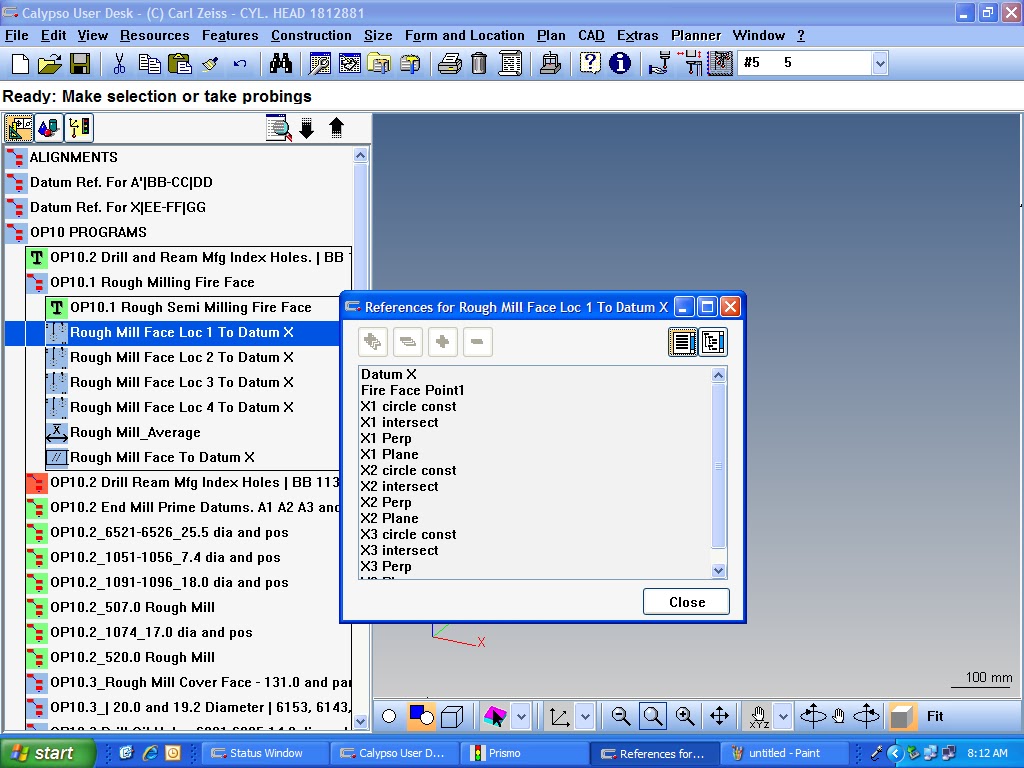
This tip allows you to find a feature used in Characteristics in your feature list. Select a Characteristic and right-click on the mouse and choose References for selected Features


A dialog box will open. Find the desired feature and double-click and the feature list will open highlighting the desired feature.


Measuring a Feature with Multiple styli

The following is reprinted from CMM Quarterly Publications Zeiss Calypso Mini-Books, Calypso Plan Menu

It is possible, and sometimes necessary, to measure a feature with multiple probes. Calypso will automatically define the probe travel path by inserting the clearance planes it needs to navigate around the part.

In this example we will measure a cylinder from both ends, one circle on each end of the cylinder. This will require two different probes.


CAD Model
(No CAD Model is shown below)

If you are using a CAD model then extract the cylinder.


Click on Strategy to make adjustments on the circle paths.


Verify that the clearance plane in the Clearance Group is correct.


Double click on Circle Path1. Make sure the Stylus number is correct. This will be the first circle measured so it should match the clearance group direction.

In other words, our clearance group is –Y. This is the direction the probe is going to move along to enter our feature to probe the first diameter. Make sure the Stylus entry is correct in order to accomplish this.
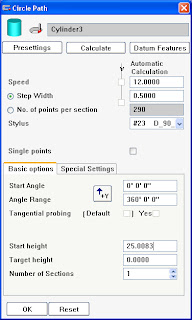


Double click on Circle Path2. Make sure the Stylus number is correct. This will be the stylus that will measure the second circle of our cylinder. This stylus must be able to enter the other side of the cylinder.


Now click on OK to exist Strategy and OK to close the feature dialog box.

This dialog will appear


This looks more ominous than it actually is. What it is actually stating is that Calypso recognizes that there are more than one stylus used to check this feature and it may require additional navigational clearance planes in order to complete the task.

YES – Calypso will add the additional clearance planes to define the proper path. Calypso does an excellent job in this respect and while you should run it through slow the first time Calypso generally gets is right.

NO – You understand that additional navigation is needed but you take the responsibility to add the position points, or clearance planes needed. You have defined the path and you do not want Calypso to change this.

No CAD Model

This is handled the same as with a CAD model, however; if no CAD model exists then measure the cylinder, changing the stylus orientation between the circles. Do not worry about clearance planes just yet. When you accept the feature you will be prompted with this message.


The procedure is identical to what is shown above.

Zeiss Calypso Tips

This site will be used to bring you useful tips for Zeiss' Calypso CMM software but you can also go to
CMM Quarterly's site here